Orca and orchestration: from install to delegating work to AI agents
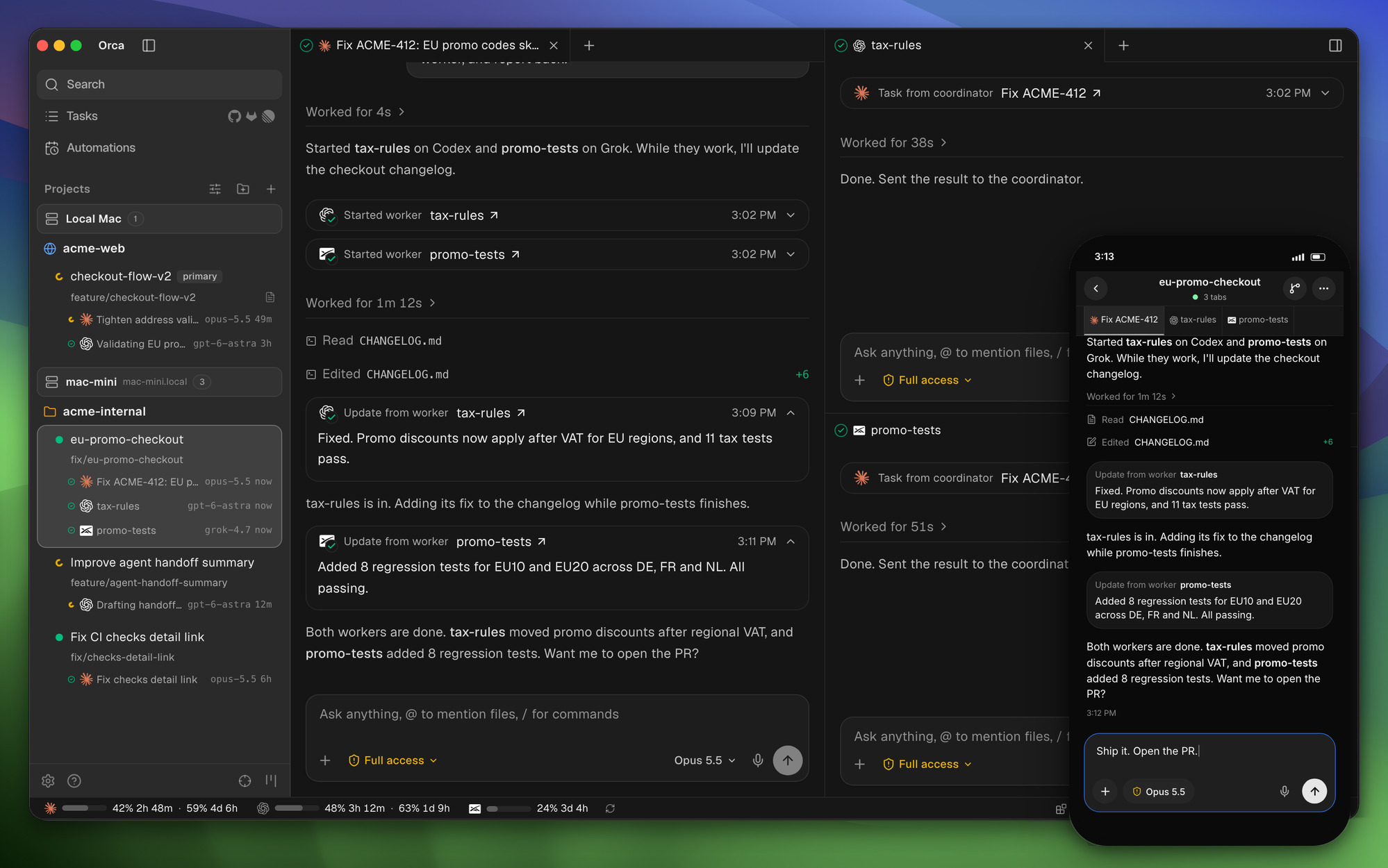
Once AI coding agents become part of your day, you eventually land here: one Codex window is changing an API, a Claude Code window is reading the UI code, and a third one is open just to ask which test is failing. Each of them does its own part well. The one keeping track of who is doing what, who touches which file and where the results ended up is still you.
This post is for anyone who wants to fix exactly that with Orca. It goes in the order I wish someone had explained it to me: what Orca is, what *orchestration* means, how to install and use it, and finally what I learned from using Orca on real projects.
The short version, on video
A 3 minute 38 second walkthrough of the whole post in the same order, narrated in Vietnamese with Vietnamese subtitles. Download subtitles (.srt).
Part 1. What are Orca and orchestration?
What Orca is
Orca is a desktop app that puts three things in one window: your Git repository, your coding-agent sessions (Codex, Claude Code, Gemini…), and a place to review what those agents changed. Orca is not an AI model. Models and quotas are still billed to the provider account you sign in with. What Orca adds is a place to work and a way to hand work between agents. About Orca.
What orchestration is
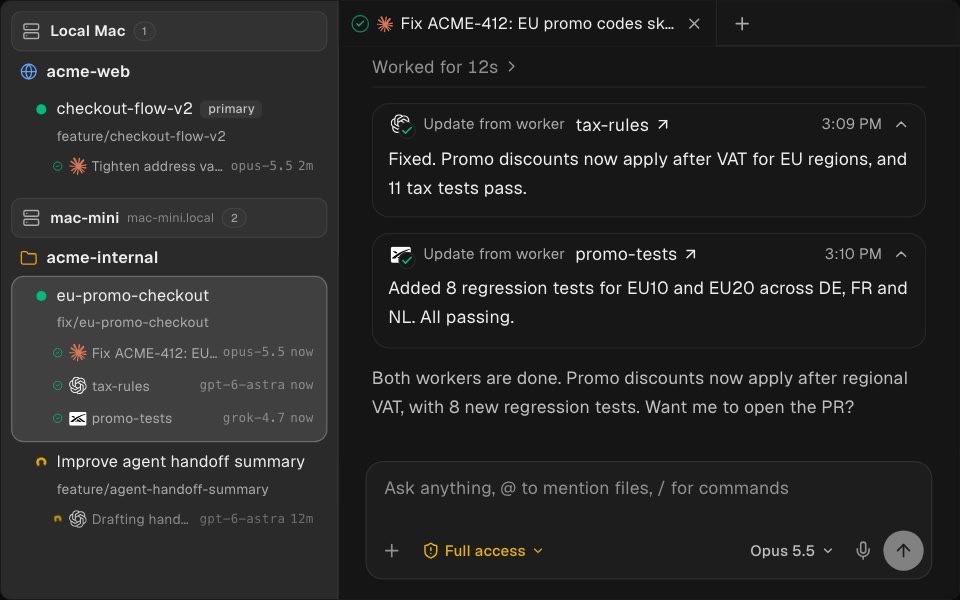
Picture a small team: a lead holds the goal, splits the work, answers questions as they come up, then gathers the results to decide what happens next. Orchestration in Orca is exactly that model, except the team members are AI agents.
You can of course open two agent windows and message each one yourself. That is running in parallel, not coordinating. Orchestration adds two things that manual messaging does not have:
- One session that owns the shared goal. It sees the whole picture, hands pieces to other sessions and decides when the work is done.
- A channel with a trail. Every handoff has its own ID, whatever a worker asks or reports comes back to the right place, and you can look it up later.
Five terms worth knowing
- Coordinator: the session that hands out work and receives reports. Your goals and decisions go through it.
- Worker: an agent that takes one specific piece of work and stays inside the scope it was given.
- Run: one round of coordination around a single goal, which can hold several pieces of work, for example “understand the form error”.
- Task: what one piece of work asks for, for example “find where the form displays errors”.
- Dispatch: one handoff of a task to a worker. Re-sending the same task creates a new dispatch ID, and the report you want is the one for that ID.
When to coordinate, and when not to
Coordination has a cost: you have to write the work down clearly, the worker has to rebuild context on its own, and you have to review the result. It pays off when:
- you need an independent pair of eyes, such as a review that would catch what the author missed;
- the work splits into independent parts that can each be checked separately;
- the work is long or multi-step, and you want a trail to come back to.
For a one-word fix or a small change right where you are reading, just do it yourself. It is much faster.
Part 2. Installing Orca
What you need
Orca runs on Windows, macOS and Linux. You need:
- Git, with your project in a Git repository;
- at least one coding agent (Codex, Claude Code…) installed, signed in and working. One agent you already know is enough to start.
Download the installer from the official site and install it like any other app. Download and install.
Open a repo and run your first session
- Open Orca, choose Add Repo in the sidebar and point it at your project's Git folder.
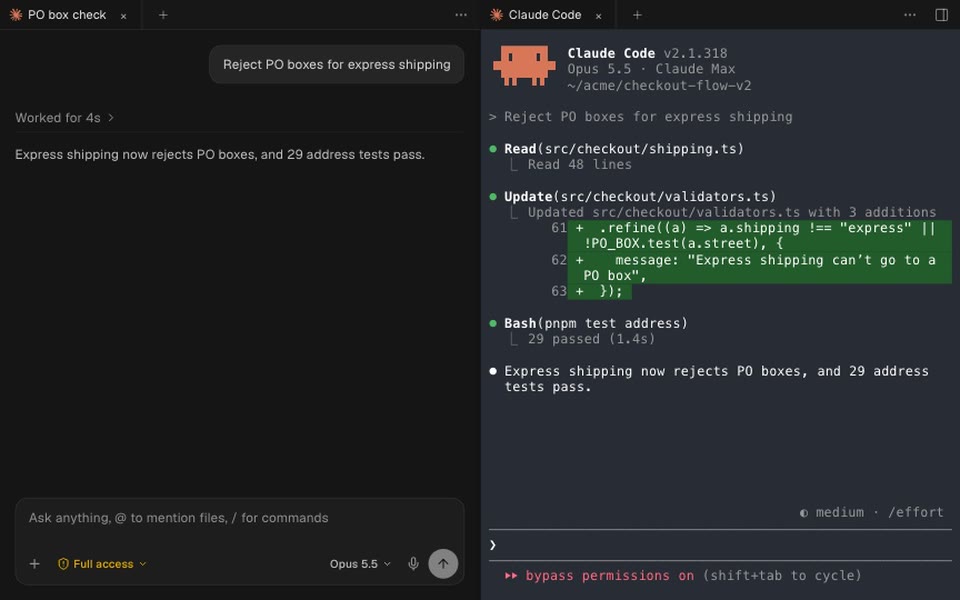
- Pick the repo's workspace. Open Chat or Terminal, whichever way you usually drive agents, and pick a signed-in agent.
- Ask something easy to check: “Read the README and tell me how to run the tests.”
If the agent names the repo's real test command, Orca is pointed at the right folder and the session works. If that answer is already wrong, stop and fix it now. It is far cheaper than finding out halfway through a handoff. Add a repo and open your first session.
Install the Orca CLI and the agent skills
Dispatching through chat is enough to start. When you want more control, or want to keep a task description as a file, you need the Orca CLI. On Windows, open Settings → General → Orca CLI to register the command, then open a new PowerShell window. On Linux, the command outside Orca's own terminal may be called orca-ide.
Check the connection and preview where the agent skills will be installed. The example uses Codex. For Claude Code, choose the claude target.
orca --version
orca status --json
orca skills install --skill orca-cli --skill orchestration --agent codex --dry-run
If the target looks right, run the install again without --dry-run. Each agent only needs this once. Then open a new agent session from inside Orca. The coordinating session has to be recognised by Orca to know where reports should go, and opening it from Orca is the surest way to get that.
Part 3. Delegating work with Orca
This part follows one example from start to finish: a post-creation form shows the same vague error message whenever the input is wrong. You want to know which code receives the error and displays it, but you do not want anyone changing anything yet.
Workspace or worktree?
Before dispatching, decide where the worker will work. Orca has two concepts:
- A workspace is a place to work inside Orca. It holds the chat, terminal and file tabs for one piece of work.
- A Git worktree is a separate working folder of the same repo, usually with its own branch. Orca can open a workspace on it.
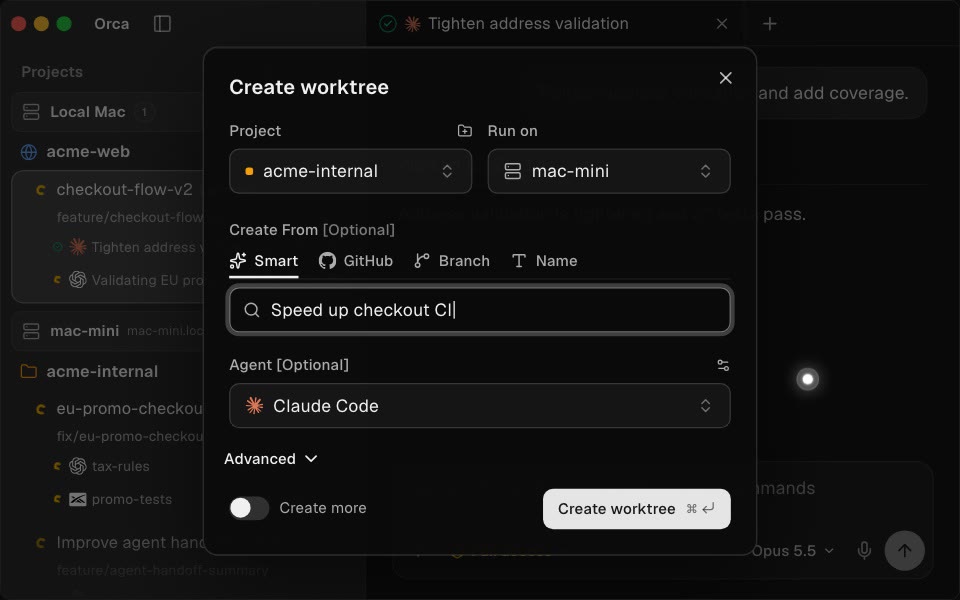
The simple rule: read-only work happens in the current workspace. Work that changes code and should stay apart from the folder you are in gets a worktree: click + next to the repo, name it (for example fix-form-errors), pick the starting branch or commit, then pick the agent.
Two things trip people up. A worktree starts from the branch or commit you chose, so uncommitted changes in your main folder are not in it. And if the worktree is missing dependencies or config files, run the repo's setup steps inside the new folder. Worktree docs.
Writing the handoff: four questions
A good handoff, however short, answers four questions: what is the goal, how far does the scope go, what does the output look like, and where does the report go.
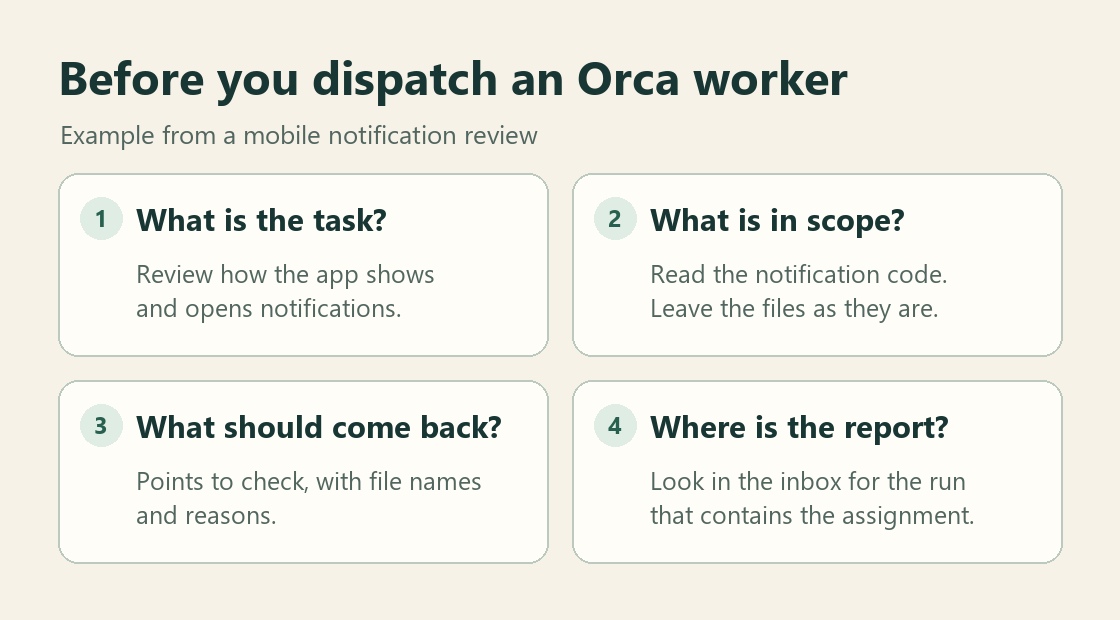
Option 1: dispatch through chat
The easiest way the first time. Send this to the coordinating session:
Use Orca to give one worker a read-only task in the current repo.
The post-creation form shows a generic message on invalid input.
Find where the form receives and displays errors. Do not edit files.
Send back at most two places to look, with the file name and the reason.
If you could not reproduce the error, say so in the report.
Send the report back to this coordinating session.
Checked against the four questions: the goal is finding where errors are handled; the scope is read-only; the output is at most two places with reasons; the report goes to the session you are chatting in. The line “if you could not reproduce the error, say so” gives the worker an honest way out, so it does not have to guess just to produce something.
Option 2: dispatch from the CLI
Save the same text to tasks/xem-form.md (create the tasks folder if the repo has none), then run this from the context of a coordinating session that Orca recognises:
orca orchestration worker-start --spec-file ./tasks/xem-form.md `
  --worktree current --agent codex --json
--worktree current means work in the current workspace. The result tells you whether the worker started, which workspace it is in, and the run and dispatch IDs. Keep those two IDs. If the command fails before dispatching, check the calling session, whether the agent is signed in and whether the repo is open. If the state is unclear, look at the existing dispatch before running it again, so you do not dispatch twice.
Getting the report
When the worker asks something, answer it in the coordinating session. If the worker says it is done but nothing shows up in chat, open the run's inbox, replacing <run-id> and <dispatch-id> with the real IDs:
orca orchestration inbox --terminal 'run:<run-id>' --full --json
orca orchestration worker-show --dispatch '<dispatch-id>' --json
orca orchestration worker-read --dispatch '<dispatch-id>' --source auto --limit 50 --json
inbox fetches the run's messages, worker-show shows the state of one dispatch, and worker-read replays the worker's output. This syntax was checked against the help output of Orca CLI 1.4.271 on Windows. Other versions may differ, so run --help if a command does not match.
Acceptance: trust the report only once it checks out
A report arriving is not the conclusion yet. For read-only work, open exactly the files the worker named and see whether its reasoning matches the code. Anything the worker marked as not reproduced stays not reproduced.
For work that changes code, the rule is: read the diff, run the right checks, then accept. If the tests pass but you have not tried it in a browser, on a device or in the integration environment, write down what is still missing instead of folding it all into “done”. Reading and annotating diffs in Orca.
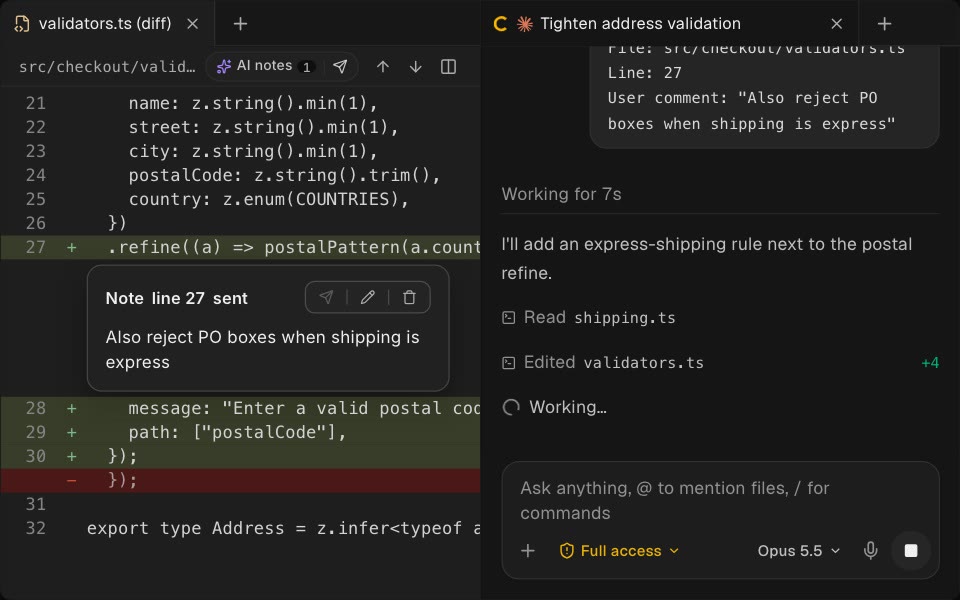
When you need more than one worker
One worker is enough when the job only needs one more read or one small fix. When it splits into parts that can be checked independently, for example one side fixing the form UI and the other preparing test data, you can give each part to its own worker. The condition is that both sides have agreed on the seam between them, here the shape of errors coming back from the API. If that seam is still changing, settle it first, then split the work.
Every handoff that changes code should state what may be edited, what belongs to someone else and which checks must pass. Changes that need to stay apart each get their own worktree. Once everything is back, run the whole flow again on the merged result: enter bad input to see the error in the right place, then valid input to make sure the form still saves. That step belongs to the coordinator, even when every worker has reported done.
Part 4. What I used it for, and what I learned
These are three situations from my own work logs. Project names have been left out.
Reviewing notifications: the report was in the inbox, not the chat
My first try was an independent read of how an app displays notifications and opens a screen when the user taps one. I asked a worker to read the code and report back. What to fix could wait until the report arrived.
Before dispatching, I checked my quota and saw that one bucket for the model I was using had 1% left, so I moved this read to a different Gemini model. That 1% describes that bucket at that moment, nothing more. Orca does not pick a model for you. That judgement still belongs to whoever dispatches.
When the worker finished, its status flipped to complete but the chat stayed silent. The report was in the run's inbox. It had eight items, and I treated them as eight places worth opening, not eight bugs. Each one still had to be checked against the code before deciding on a fix.
Another time, I opened Codex from the VS Code extension, outside Orca. The extension had the orchestration skill installed, but Orca did not recognise that session as a coordinator. Since then, whenever something looks off, I ask three questions in order: does Orca see this session? Has the worker picked up the task? Did the report arrive in the right place?
The front-desk screen and the shared scanner
While building a hotel front-desk screen, one worker handled check-in and check-out while another added raw-code reading to a shared scanner screen. Taken separately the two jobs looked independent, but check-in needed that very scanner screen to read ID documents.
What had to be settled was who may change the scanner screen and how the front desk calls it. The scanner worker added the ability to return the decoded code, and the front-desk worker used it to fill in guest details. With one clear seam, both could do their part without stepping on each other. When a shared check failed in the other worker's UI code, the failure was logged in the right place and re-checked after that part was fixed.
In the final report, what I wanted was not the word “done”. The front-desk part had seven dedicated tests passing, and the report stated plainly that scanning documents with a camera and paying against the real system still needed testing. Seven passing tests prove neither of those things, and those two lines told me exactly which parts had evidence and which still needed acceptance.
Two worktrees for two ends of one integration
When integrating two services, I used two separate worktrees for the sending side and the receiving side, each with its own code and tests. One side passed its local database tests. The other passed its integration tests, but the shared TypeScript check still failed because of configuration that predated the work. Both reports pointed to the same missing step: running both services together to see whether data really travels from sender to receiver. Worktrees kept the file changes apart, but the seam between the two still needed a person to settle it and test it.
Takeaways
- Settle the seam before you split the work. The question to ask before opening another worker is who edits which file, and how the parts will fit back together.
- A report is evidence, not a verdict. Eight items are eight places to look. Seven passing tests do not mean the camera or payments work.
- Know where reports land. A silent chat does not mean the worker is not done. Check the run's inbox, and remember that the session has to be recognised by Orca for reports to arrive in the right place.
- Dispatch work of the right size. Small changes where you are reading, just do. Dispatch when you need an independent view or the work genuinely splits.
- The coordinator owns the merge. Even after every worker reports done, run the whole flow again on the merged result.
About saving quota
Coordination can move heavy work to a model or account that still has quota, but it also costs extra: time to write the handoff, context the worker has to rebuild, and time for you to review. None of the logs behind this post include an A/B measurement, so I am not quoting a savings number. If you want to measure it yourself, pick one task and do it twice, once directly and once through a worker, with the same starting point and the same definition of done. Record when the fix passes its checks, how many rework rounds it took, and the usage in the right bucket if you can read it.
Try it now
If you do only one thing after reading this, pick a piece of code you are unsure about, dispatch a read-only pass with a clear scope, open the report in the right place and check it against the code yourself. Doing that once takes you through the whole coordination loop: dispatch, follow, receive and accept.
Interface screenshots come from Orca's sample workspace. The diagrams were drawn for this post. Orca image sources · Image license.